Backlog and planning
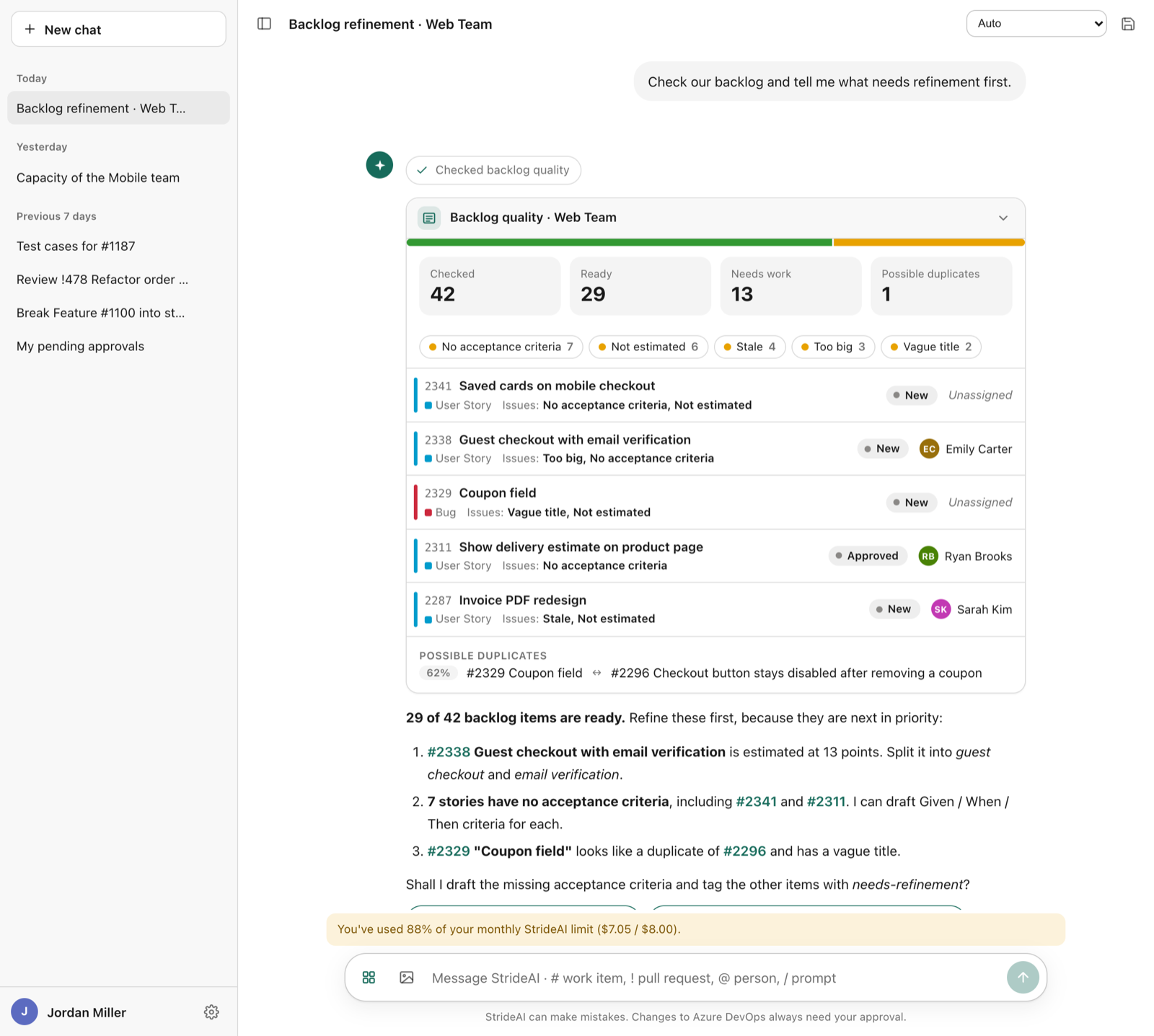
Refine the backlog in minutes
Section titled “Refine the backlog in minutes”Ask “What needs refinement first?”. StrideAI finds items without acceptance criteria or estimates, items that are too big or stale, and likely duplicates, then drafts the missing parts for you to approve.
From notes to a backlog you reviewed (Intake)
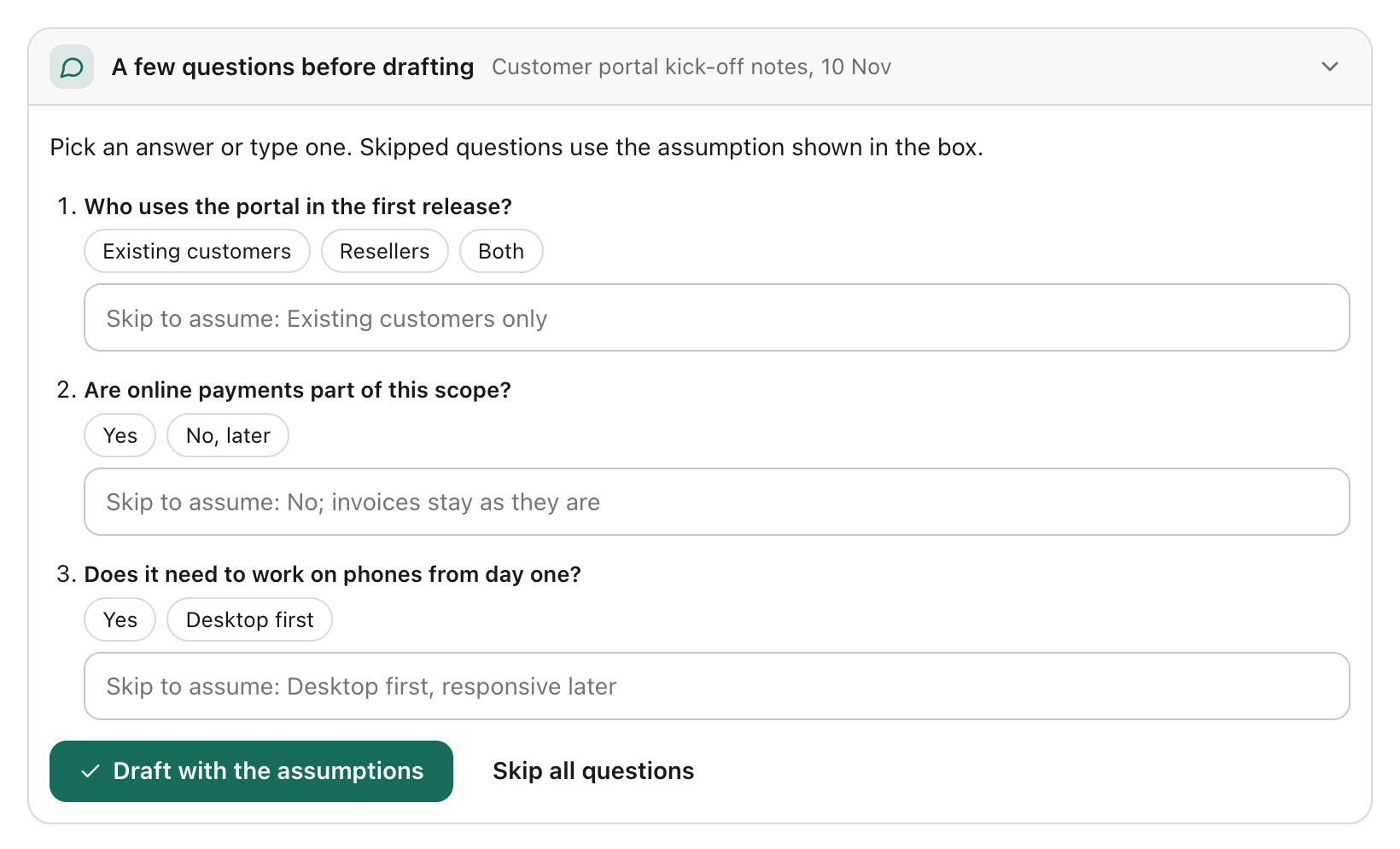
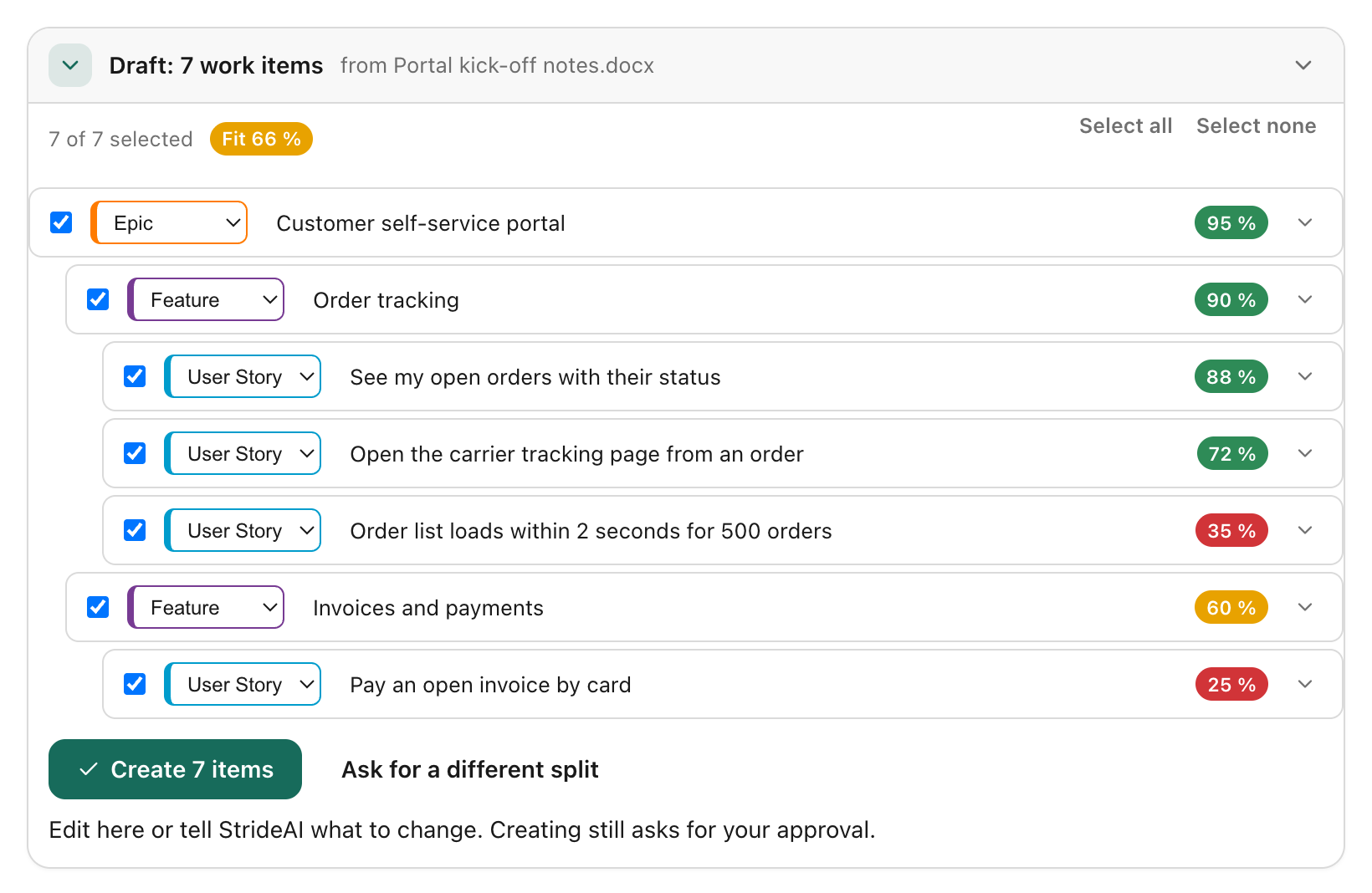
Section titled “From notes to a backlog you reviewed (Intake)”Paste meeting notes, attach a Word or Markdown document, or point at a wiki page and ask for work items. StrideAI reads everything, then asks first: up to six questions whose answers change the draft, each with the assumption it will make if you skip it. Then it drafts a hierarchy, Epic or Feature down to stories, bugs and tasks, as a draft board: every item with its type, a fit score for how directly the source supports it, and the sentence it came from. Change titles, types and parents, edit descriptions and acceptance criteria, untick what you do not want, then create everything with one approval.
Backlog health: grade stories through a lens
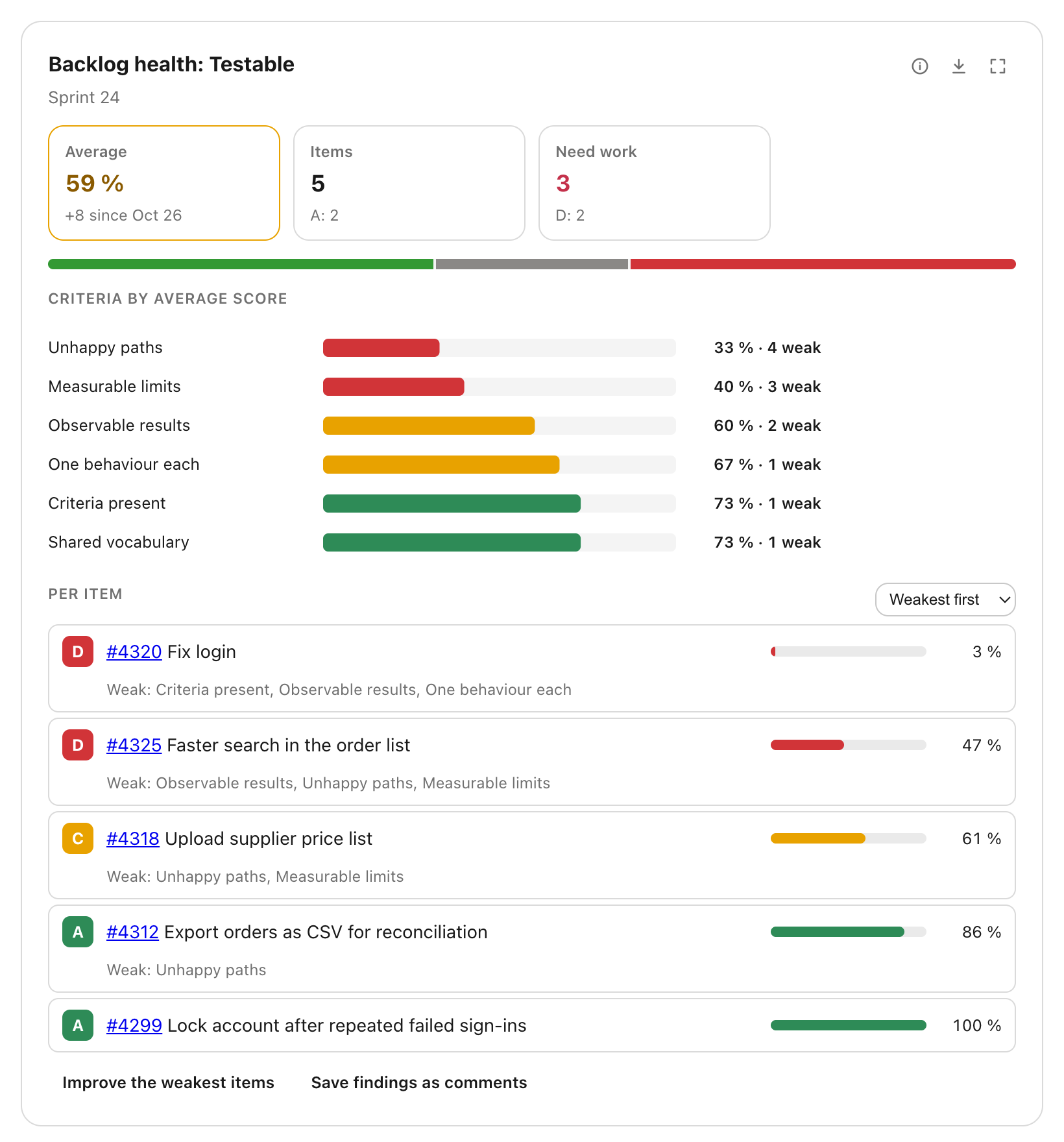
Section titled “Backlog health: grade stories through a lens”Ask “How ready are the sprint stories?” or “Score #123 for testability”. StrideAI judges each item against a lens, a set of weighted criteria: Clear story, Testable, Worth doing now, Risk-aware, Six Cs, MoSCoW fit, and Ready for a sprint. Every criterion gets a score from 0 to 3 with a sentence of evidence, and the scorecard shows a grade from A to D per item, the weakest criteria across the set, and how the average moved since the last check.
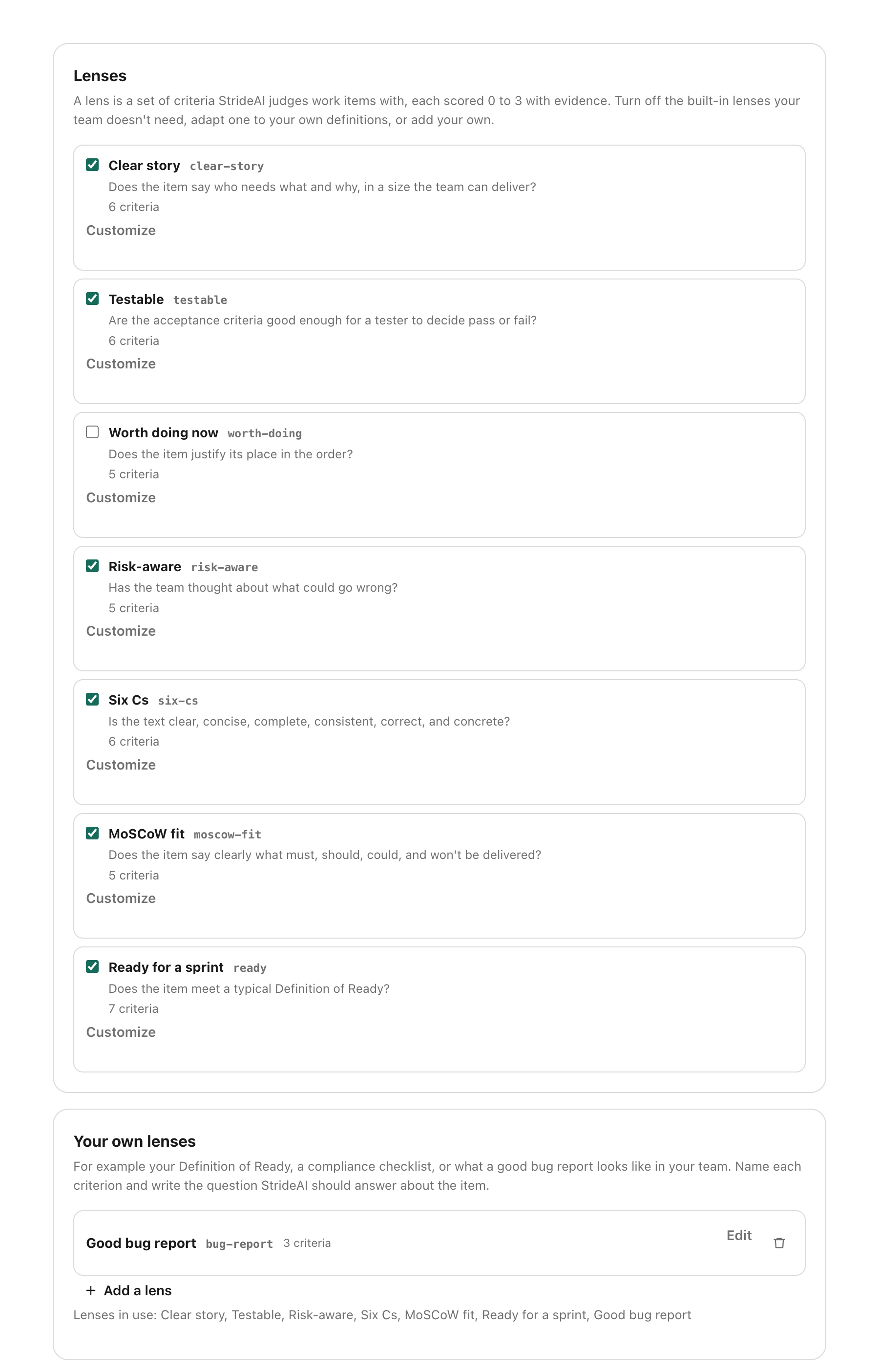
In Settings → Backlog health, turn off the lenses your team does not need, adapt one, or write your own: a Definition of Ready, a compliance checklist, or what a good bug report looks like.
Diagrams from your work items
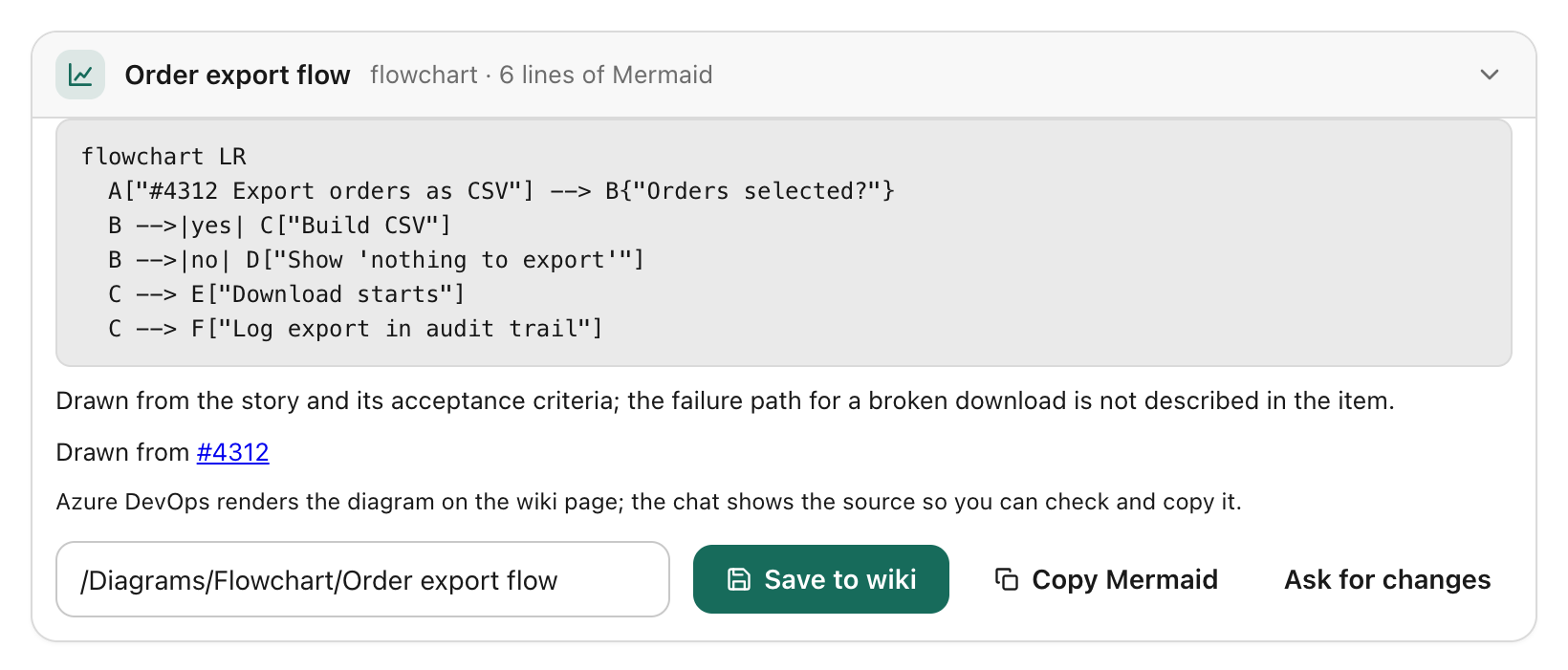
Section titled “Diagrams from your work items”Ask “Draw the checkout flow from #4312”. StrideAI reads the items, code or wiki pages and draws a flowchart, sequence, state, class, ER, Gantt, journey, mind map or timeline diagram as Mermaid, checks the source, and saves it to a wiki page under Diagrams with your approval. Ask for changes in plain words and it redraws.
Wireframes from a story
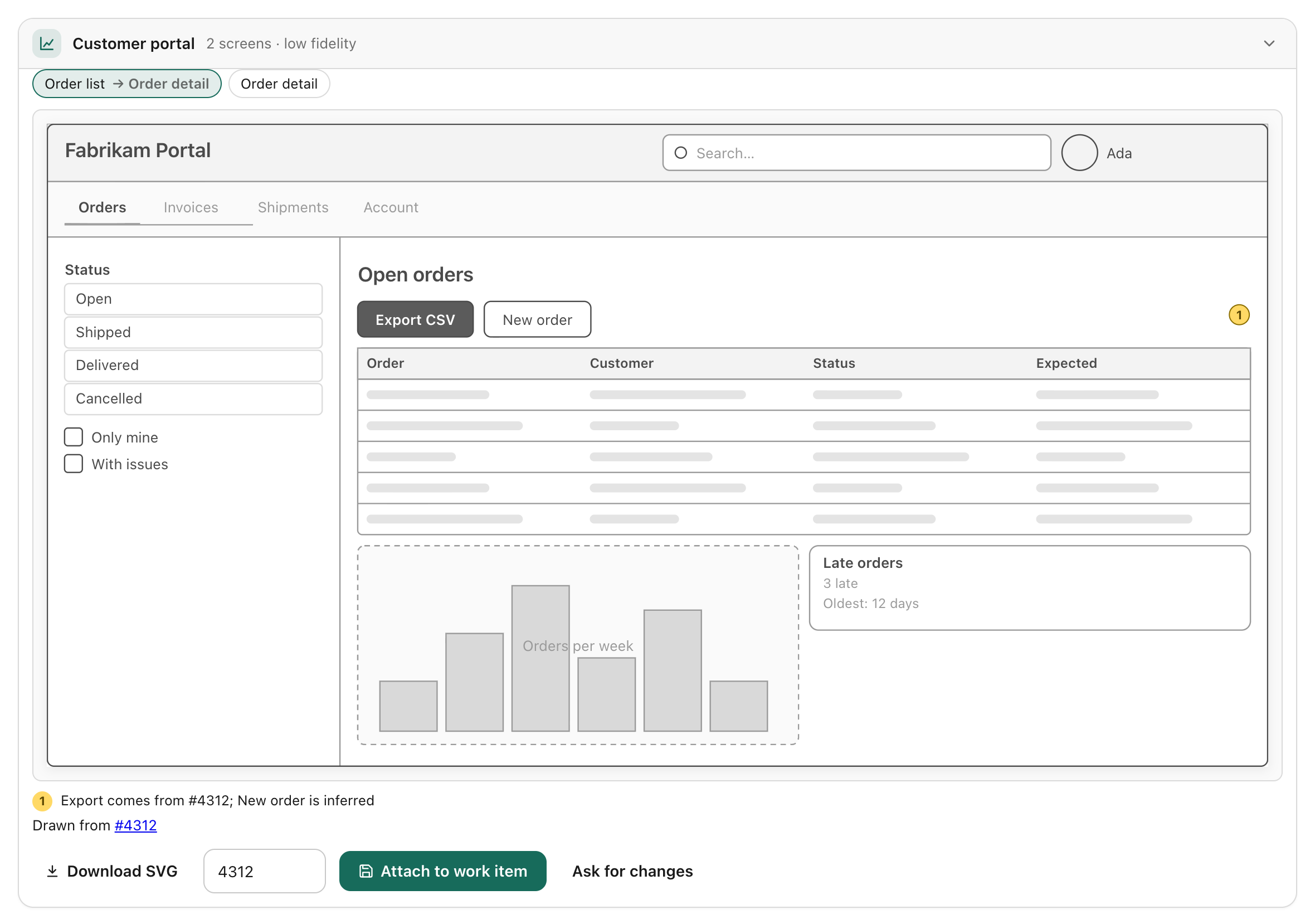
Section titled “Wireframes from a story”Ask “Sketch the order list screen for #4312”. StrideAI draws a low-fidelity wireframe: grey boxes with real labels and no visual design. Several screens become tabs with the flow between them; numbered callouts say where an element comes from. Download the SVG or attach a screen to the work item. No image model is involved, so it is instant and costs no tokens to render.
One instruction, many items, one approval (Bulk Run)
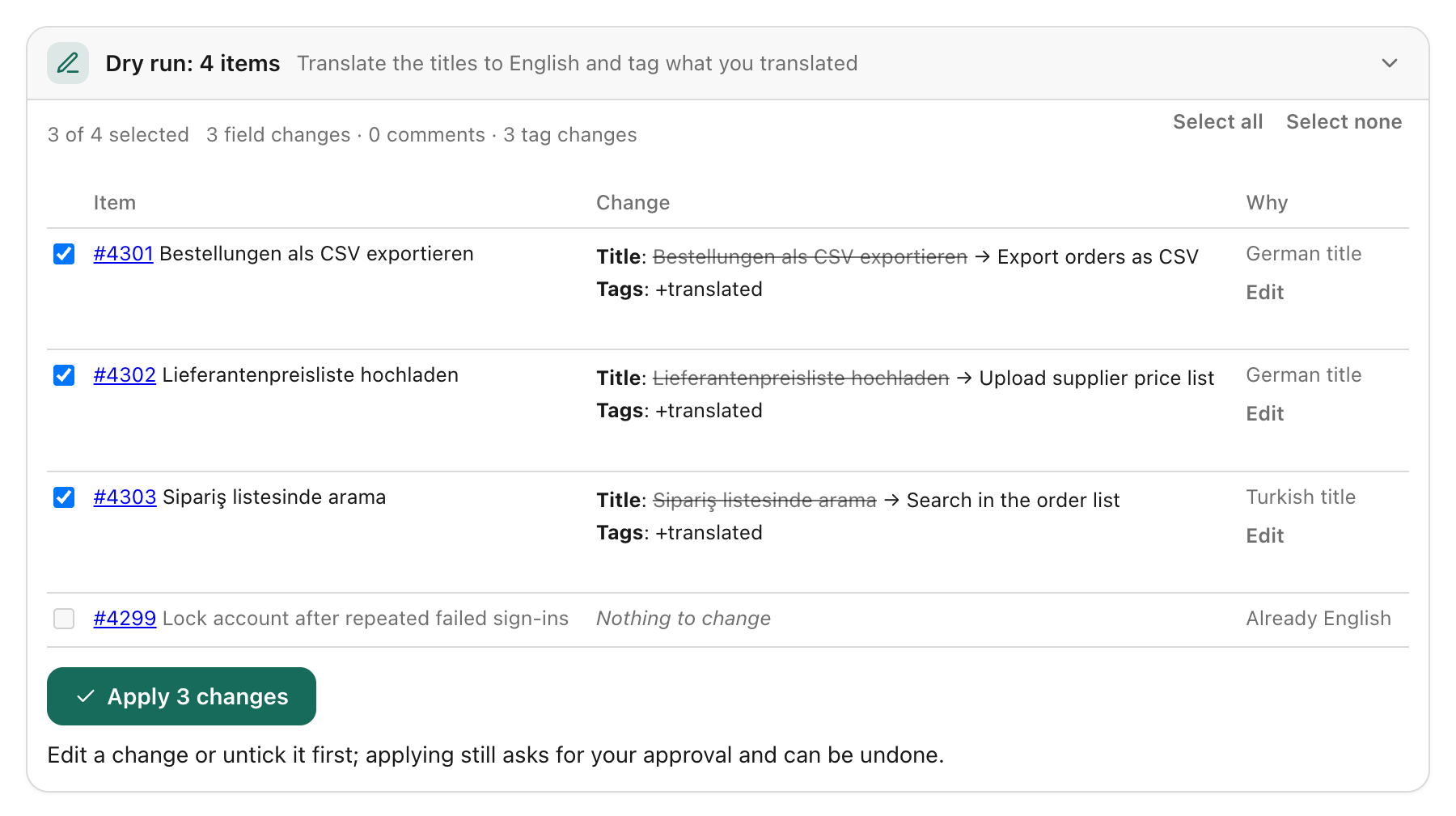
Section titled “One instruction, many items, one approval (Bulk Run)”Ask “Add acceptance criteria to every story that has none”. StrideAI says which fields the run may touch, works out a change per item, and shows a dry run: before → after per field, comments, tags and a one-line reason each. Untick what you do not want, edit a value, then apply everything with one approval; the run can be undone.
Explore a topic before you build it (Discovery)
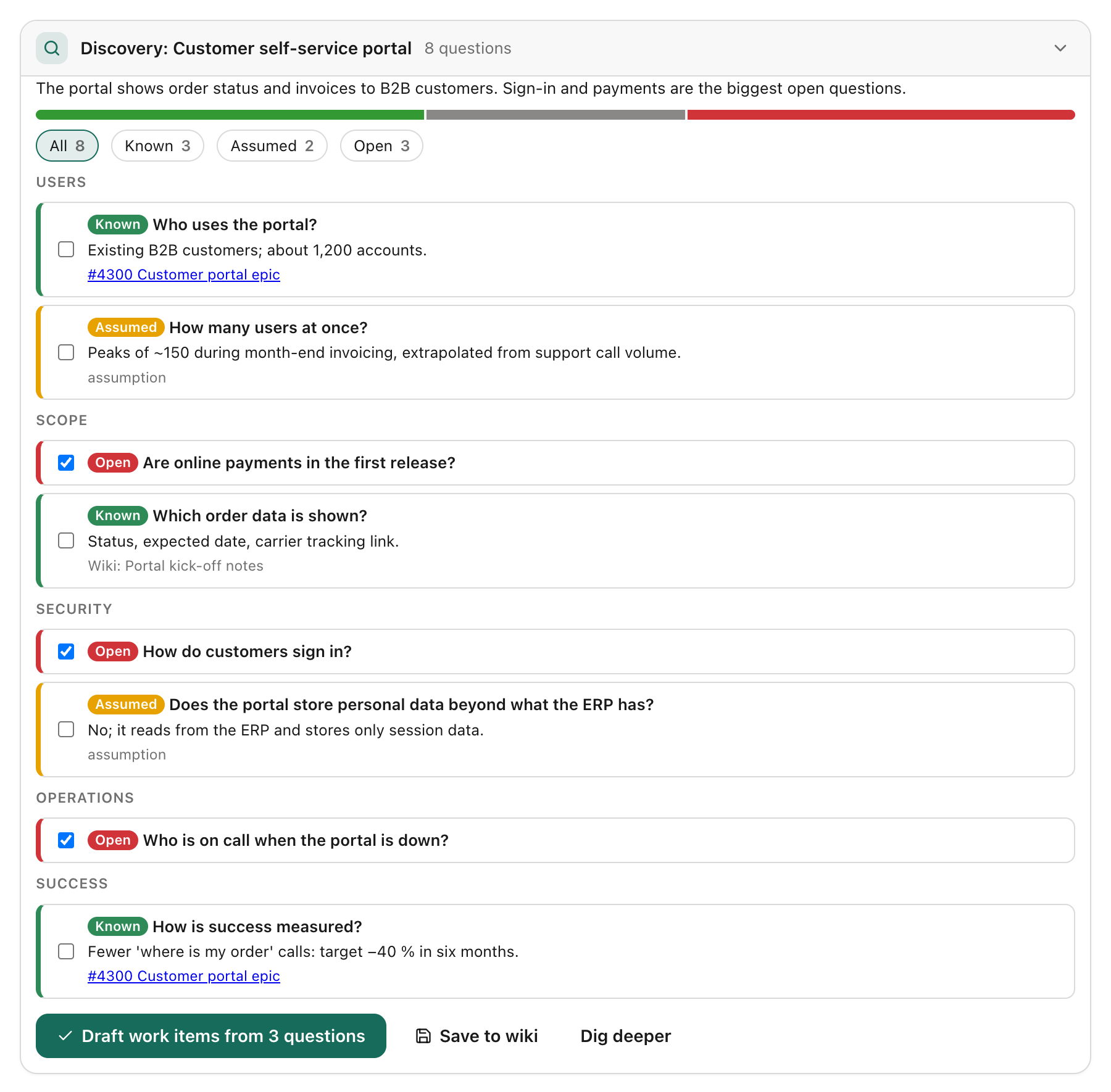
Section titled “Explore a topic before you build it (Discovery)”Ask “What do we know about the customer portal?”. StrideAI searches work items, wiki and code and answers as questions grouped by area, each marked known with its source, assumed, or open. Send the open ones to Intake as spikes and tasks, or save the list to the wiki.
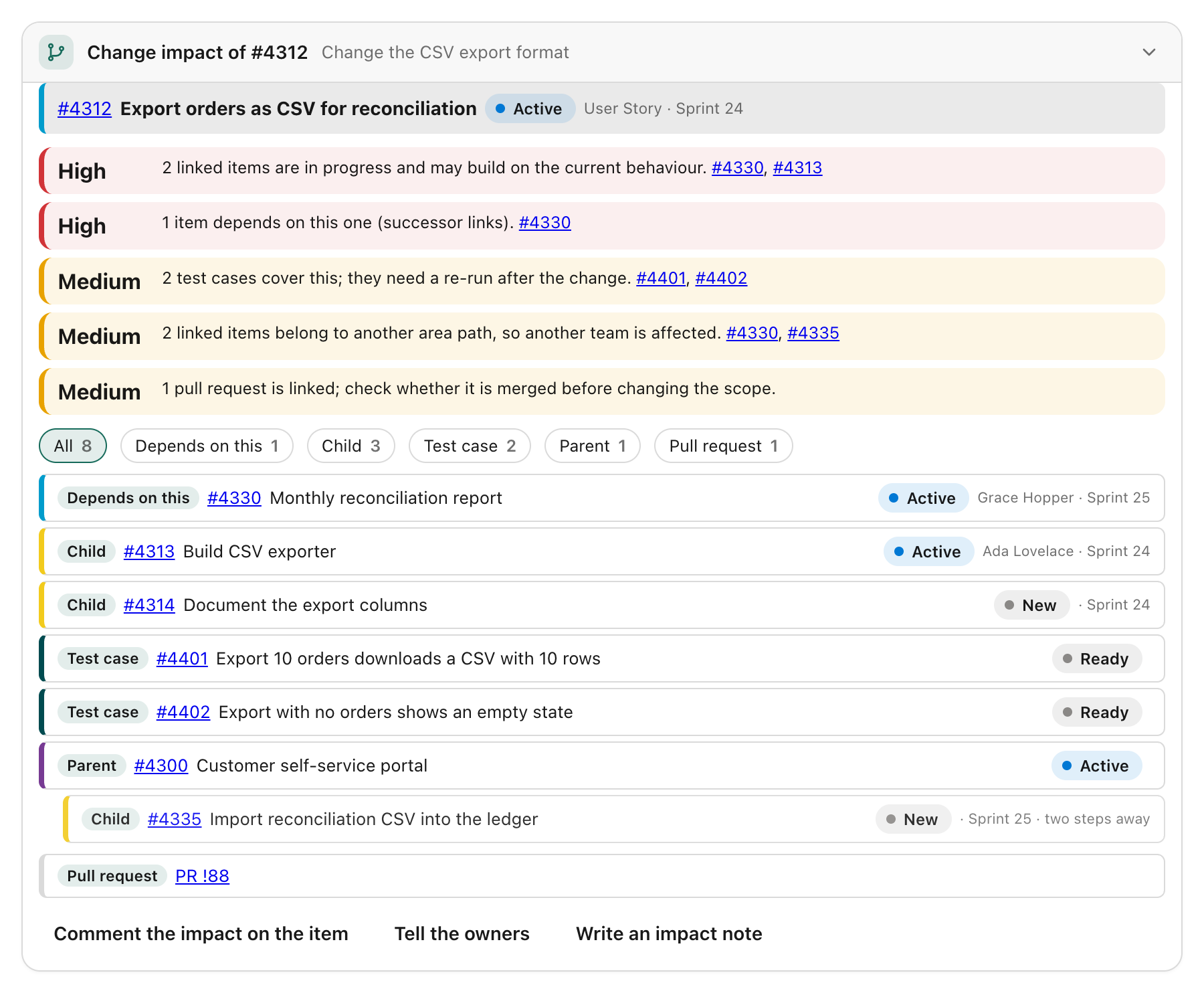
What does this change touch? (Change impact)
Section titled “What does this change touch? (Change impact)”Ask “What does changing #4312 affect?”. StrideAI follows the item’s links two steps out and shows them by kind with the risks that follow: items in progress that build on the current behaviour, test cases to re-run, other teams’ areas, linked pull requests. Comment the impact, tell the owners, write an impact note to the wiki, or tick risks and Create mitigation tasks.