First questions
Where StrideAI appears
Section titled “Where StrideAI appears”- StrideAI → Chat in the project menu: the full chat page with Explore, Workbench, the Desk and your history.
- The StrideAI tab on any work item: Studio tiles and a chat about that item.
- The StrideAI tab on any pull request: risk level, security check and review.
- Quality & roles in the project menu: visual reports per role.
- Right-click on items in a backlog, board or query result.
Try these
Section titled “Try these”Open Chat and ask:
- “Prepare today’s stand-up”
- “How is the sprint going?”
- “Unfinished items from the previous sprint”
- “Why did last night’s build fail?”
- “When will the Checkout epic be done?”
- “Show open P1 bugs, bugs per story and % of the sprint done as tiles”
- “What needs refinement first?”
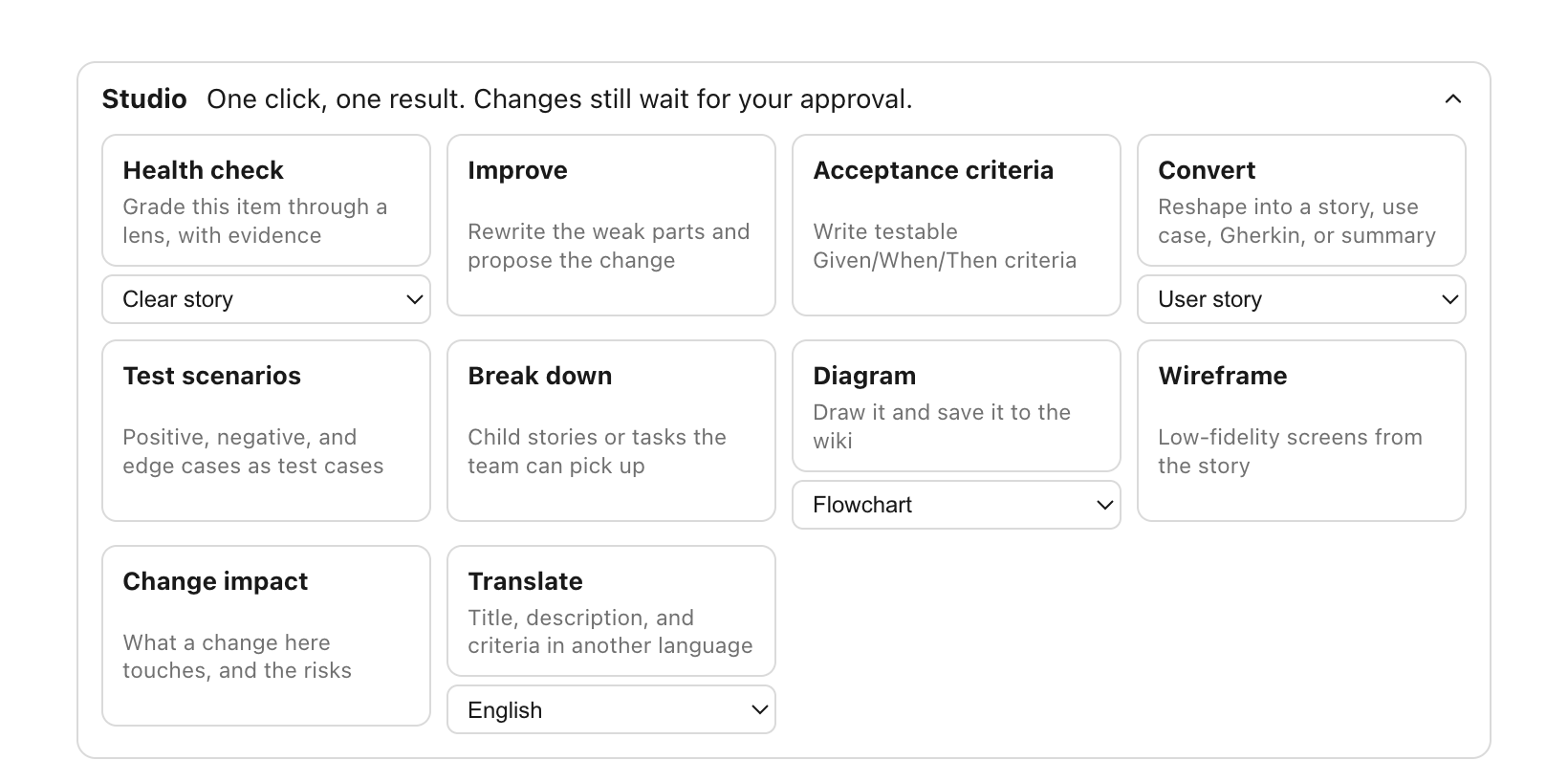
Open a work item and select a Studio tile: Health check, Improve, Acceptance criteria, Break down, Test scenarios.
Open a pull request, read its risk level, then select Review with StrideAI.
How approval works
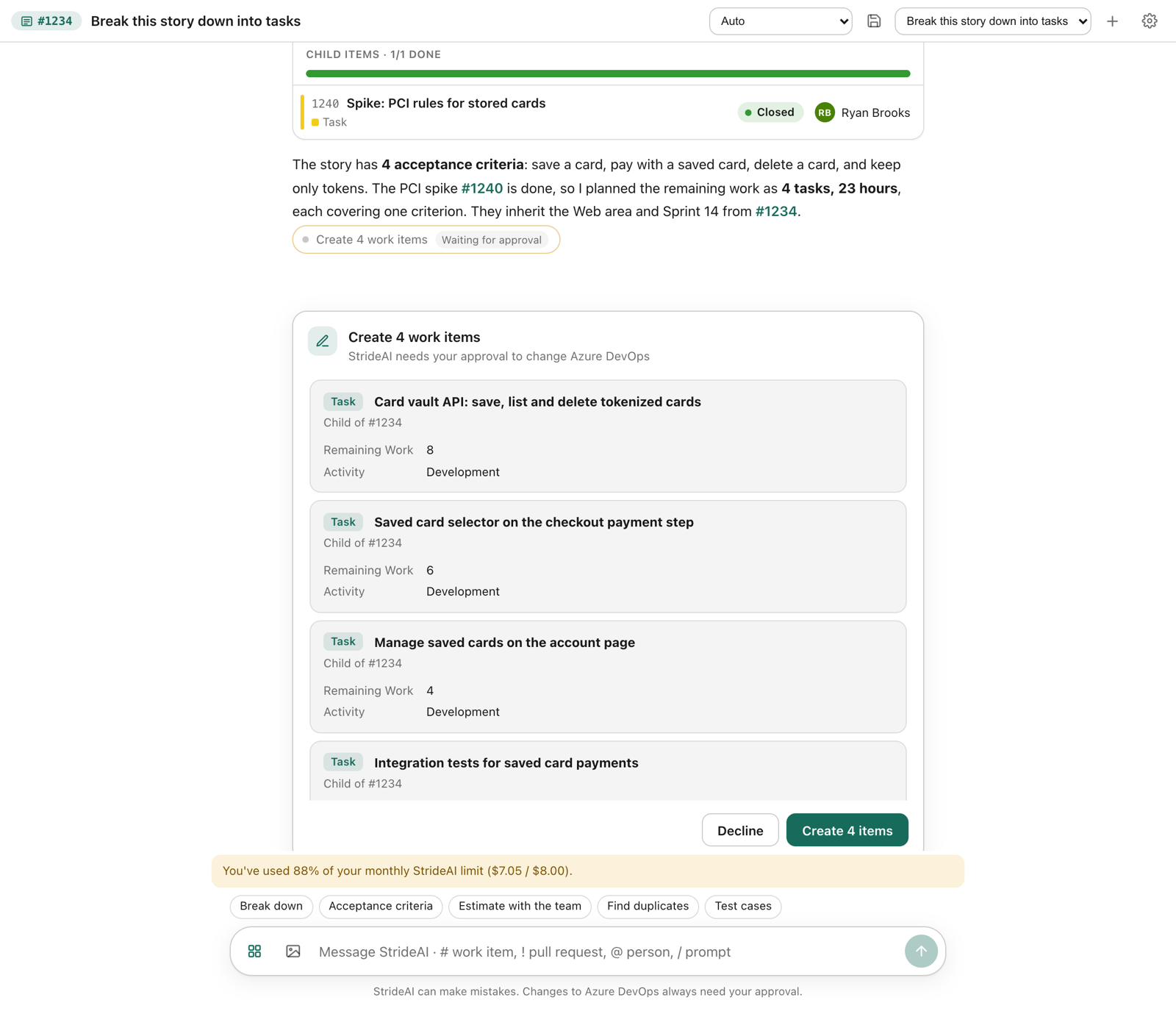
Section titled “How approval works”Whenever StrideAI wants to change something in Azure DevOps, it shows an approval card: what it will create or update, how risky that is, and why. You can edit comments, untick fields, decline, or approve; when several changes are waiting, Approve all takes them in one click. Work item changes and replaced wiki pages get an Undo button afterwards.
Pick your role
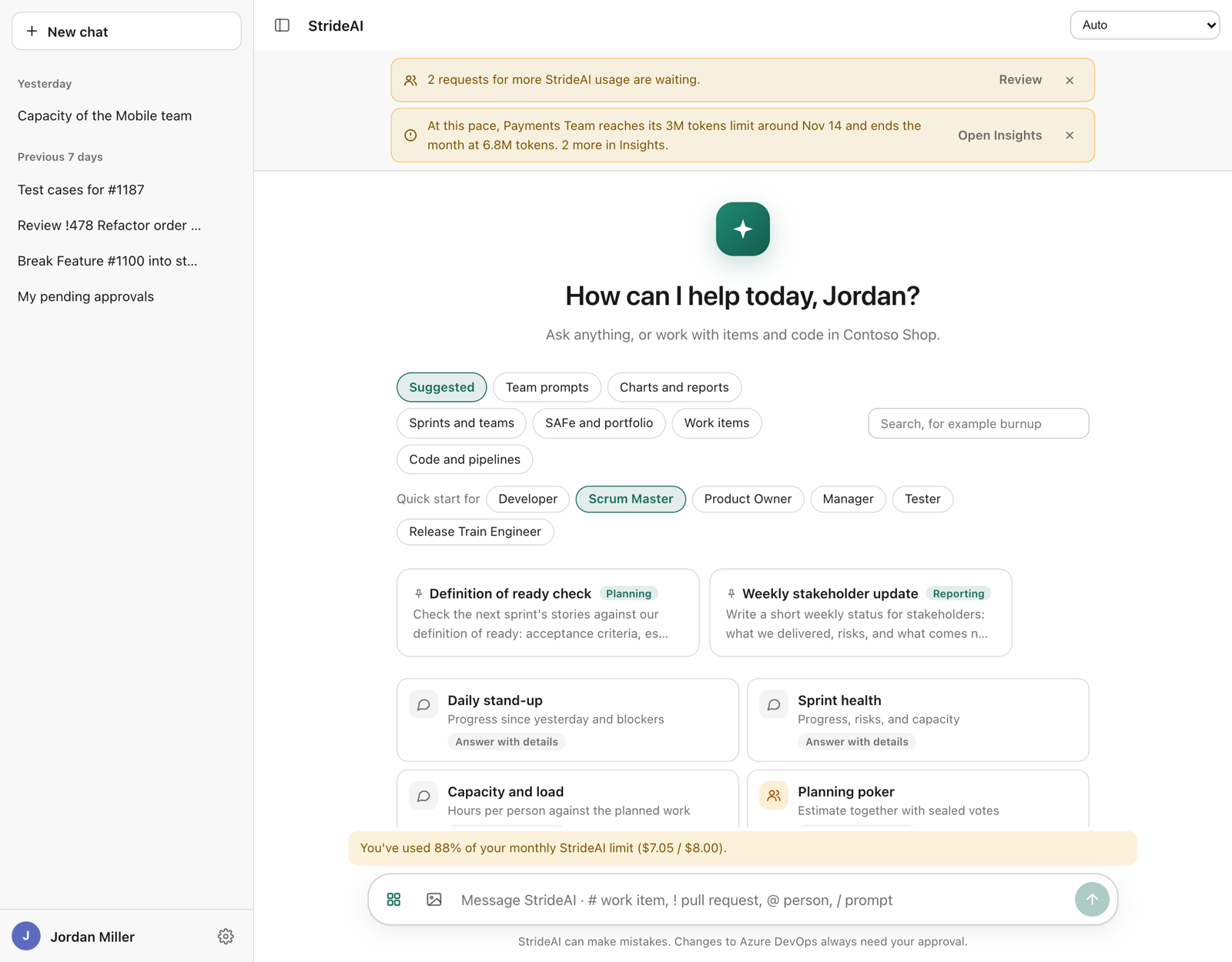
Section titled “Pick your role”A new chat offers quick starts for Developer, Scrum Master, Product Owner, Manager, Tester and Release Train Engineer: the six things people in that role ask most, with your team’s pinned prompts first. StrideAI remembers your role.
Languages
Section titled “Languages”The interface is in English, German, French, Spanish and Turkish, and StrideAI answers in the language you write in. Set yours under Settings → My preferences.